Google Search Console setup takes about 15 minutes: sign in with a business Google account, add your website as a property, verify ownership with an HTML tag or DNS record, submit your sitemap, and inspect key pages. After a few days, the Performance report shows your clicks, impressions, CTR and average position.
If you cannot see which searches bring visitors to your website, you are guessing what to fix. Google Search Console is the free tool that removes the guesswork, and this guide walks you through Google Search Console setup for a WordPress site with Rank Math, one step at a time.
What is Google Search Console?
Google Search Console is a free Google tool that shows how your website performs in Google Search. It tells you which search queries show your pages, how many people see and click them, and whether Google can find and index your important URLs. Google Search Console setup is the process of adding your site to this tool and proving that you own it.
You do not need Search Console for Google to find your website. You need it to see the data. Without it you cannot tell which keywords bring impressions, which pages have a low click-through rate, or whether a new page you published was indexed. That is why we list “not using Google Search Console” among the 15 SEO mistakes killing small online businesses.
What you need before Google Search Console setup
Keep four things ready before you start your Google Search Console setup. First, a Google account that belongs to the business. Second, the exact address of your website. Third, either WordPress admin access (for the HTML tag method) or access to your domain provider’s DNS settings (for the Domain property). Fourth, about 15 minutes.
Domain property or URL-prefix property?
When you add a site, Search Console asks you to pick a property type. The choice decides how you verify and what data you see.
| Property type | What it covers | How you can verify | Best for |
|---|---|---|---|
| Domain property | All protocols (http and https) and all subdomains of your domain | DNS record only (TXT or CNAME) at your domain provider | Owners who can edit DNS and want complete data |
| URL-prefix property | Only the exact address prefix you enter | HTML file, HTML tag, Google Analytics, Google Tag Manager (everything except DNS) | WordPress owners without DNS access who want the quickest start |
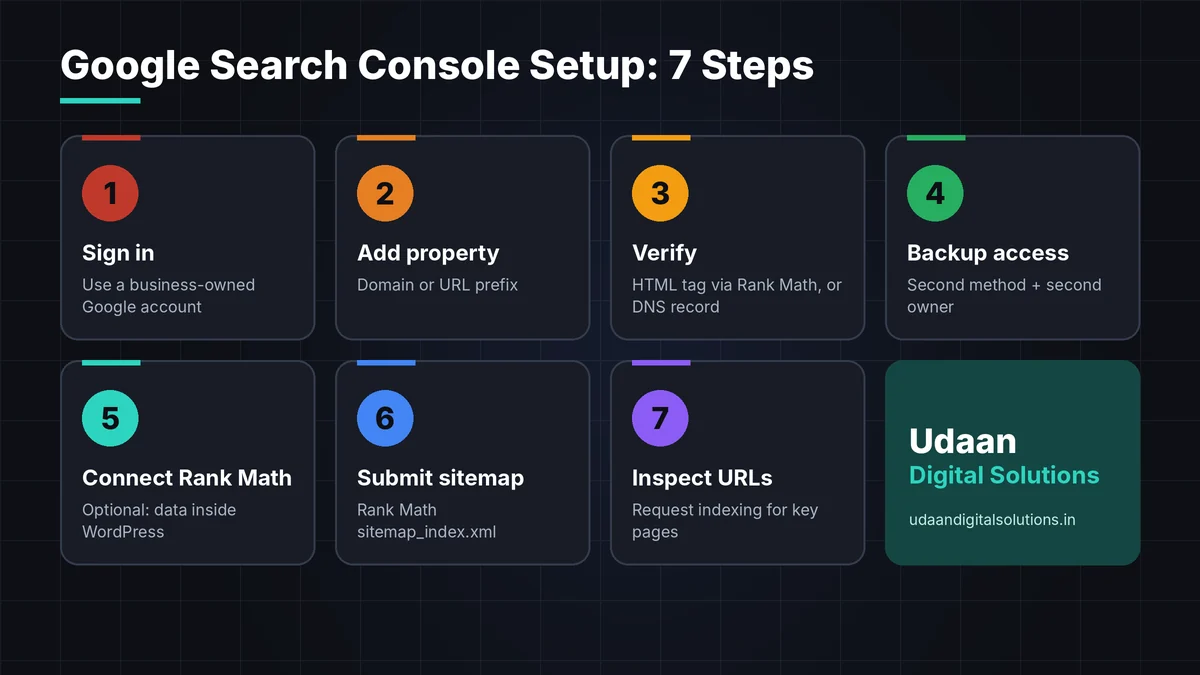
7 steps for Google Search Console setup
Sign in with the right Google account
Go to Google Search Console and sign in. Use a Google account that belongs to the business, not only a freelancer’s or agency’s personal Gmail. Google notes that if all verified owners lose access to a property, all users lose access too. A business-owned account protects your data if your agency, developer or employee changes.
Add your website as a property
During Google Search Console setup, click Add property and choose the type: Domain or URL prefix (compared in the table above). If you only have access to WordPress and not to your domain’s DNS settings, choose URL prefix and enter the exact address of your site, for example the https version with or without www, matching how your site actually loads.
Verify ownership
Verification proves you own the site. With the HTML tag method, Search Console gives you a meta tag. In WordPress, open Rank Math SEO, then General Settings, then Webmaster Tools, paste the code in the Google Search Console field, save, and click Verify in Search Console. If you use the Domain property instead, add the DNS TXT record at your domain provider.
Add backup access so you never lose data
A safe Google Search Console setup includes backups. Google says removing the verification file, tag or DNS record causes loss of verification, and that tags can disappear when a theme or template changes. It recommends adding more than one method and allows several owners on the same property.
Connect Rank Math Analytics (optional)
Rank Math can show Search Console and Google Analytics 4 data inside your WordPress dashboard. Enable the Analytics module, connect your Rank Math account and Google account, then select your site in the Analytics settings. Rank Math’s documentation advises selecting the URL property rather than the sc-domain property for a smoother experience.
Submit your sitemap
A sitemap is a standard part of Google Search Console setup, and it helps Google discover your URLs. Rank Math generates one automatically; its address is usually your domain followed by /sitemap_index.xml, and you can confirm it in Rank Math under Sitemap Settings. In Search Console, open Sitemaps, paste the address and submit. Google says submission is a hint and does not guarantee that every URL is crawled or indexed.
Inspect your key pages and request indexing
Paste an important page address into the URL Inspection bar. It shows whether the page is on Google, when it was last crawled and which canonical Google chose. If you have just published or fixed a page, use Test live URL and then Request indexing. Google says indexing can take from about a day to a week or two, and that a request does not guarantee indexing. There is also a daily limit on requests.
Want your tracking and local SEO set up properly?
Udaan Digital Solutions can check your Search Console, sitemap and Google Business Profile, then give you a clear list of what to fix first.
Talk to Our Team SEO Services →How to read your report after Google Search Console setup
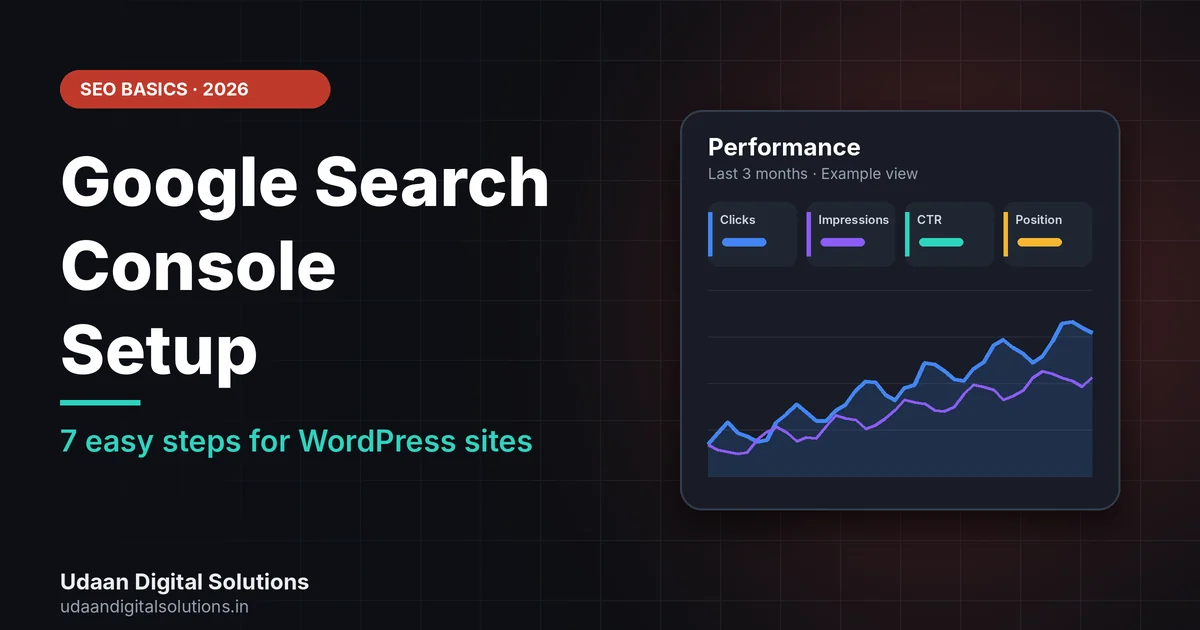
After your Google Search Console setup, wait a few days and then open the Performance report. By default it shows the past three months, and you can switch between Queries, Pages, Countries, Devices and Dates using the tabs above the table. Four numbers matter most.
| Metric | What it means | What to do with it |
|---|---|---|
| Clicks | How many times people clicked from Google Search to your site. | Track the trend by page and by query. Rising clicks on money pages is the goal. |
| Impressions | How many times your site appeared in search results. | High impressions with few clicks means the title and description need work. |
| CTR | Clicks divided by impressions. | Rewrite titles and meta descriptions of pages with good impressions and low CTR. |
| Average position | Chart: position of your site’s topmost result. Table: average position for that row’s URL or query. | Compare positions by page in the table, and do not judge one number in isolation. |
Two cautions from Google’s own documentation: the newest data can be preliminary and may change for a few hours, and chart totals can differ from table totals because of how data is aggregated. Do not panic over small differences.
Common Google Search Console setup problems and fixes
| Problem | Likely cause | Fix |
|---|---|---|
| HTML tag verification fails | Cached page without the tag, or the homepage needs login, or a redirect changes the page checked | Clear site and CDN cache, make sure the tag is in the head of the public homepage, and retry. |
| DNS verification is not working yet | Manually added DNS records can take up to two or three days to appear | Wait, then verify again. Do not remove the record after verifying. |
| Verification disappears after a theme or template change | The tag was removed from the new template | Re-add it, and keep a backup method such as DNS or Analytics. |
| No data in reports | The property is new | Data takes a few days to appear after you add the property. |
| Your own search does not show your site | Results vary by time, location, device and search history | Use the Performance report instead of searching yourself. |
If your Google Search Console setup problem is not in this list, the most reliable path is to re-check that the verification tag or DNS record is still in place, since Google periodically re-checks it and notifies you if it cannot confirm it.
Weekly checklist after Google Search Console setup
- Business account: The property is owned by a Google account the business controls.
- Verified: Ownership is verified and a backup method is added.
- Second owner: At least one more trusted person is an Owner.
- Sitemap: The Rank Math sitemap is submitted and loads without errors.
- Key pages: Homepage, service pages and newest posts are inspected.
- Performance: You check clicks, impressions, CTR and position every week.
- Quick wins: Pages with high impressions and low CTR get better titles and descriptions.
For local businesses, pair this with a properly set up Maps listing. See our guide to Google Business Profile optimization in Greater Noida, and read how digital marketing services in Greater Noida use this data to plan content.
Frequently asked questions about Google Search Console setup
How long does Google Search Console setup take?
The setup itself usually takes about 15 minutes. HTML tag verification works as soon as the tag is live, but DNS records can take up to two or three days to appear, according to Google. Data starts collecting once the property is added, though it takes a few days to show in reports.
Is Google Search Console free?
Yes. Search Console is a free tool from Google. You do not need to pay anyone to set it up, and you should be careful with anyone who charges for access to your own data. You only need a Google account and the ability to verify that you own the website.
Should I choose a Domain property or a URL-prefix property?
Choose a Domain property if you can add a DNS record, because it covers all protocols and subdomains. Choose a URL-prefix property if you only have WordPress access, because you can verify it with an HTML tag. Rank Math recommends the URL property for a smoother integration.
Does Google Search Console improve my rankings directly?
No. Search Console reports how your site performs in Google Search and shows indexing information, but it does not rank pages by itself. Its value is in showing which queries, pages and problems to work on, so you can improve content and fix issues faster.
Why do I see no data after my Google Search Console setup?
Data takes a few days to appear after you add a property, so wait before worrying. Also remember that a query may appear in your report even if you cannot see your site when you search it yourself, because results vary by time, location, device and search history.
Do I need to submit a sitemap?
Not always. Google says sites of about 500 pages or fewer with strong internal linking may not need one, while new sites with few external links can benefit. Submission is a hint, not a guarantee of crawling. Since Rank Math already creates a sitemap, submitting it takes only a minute.
Related reading and sources
- 15 SEO Mistakes Killing Small Online Businesses
- Why Your Website Gets Traffic but Zero Leads
- UDS plans and pricing
- Google Search Console Help: Verify your site ownership
- Google Search Console Help: Performance report
- Google Search Console Help: URL Inspection tool
- Google Search Central: Build and submit a sitemap
- Rank Math: Verify your website on Google
- Rank Math: Connect your Google account
Final verdict on Google Search Console setup
Google Search Console setup is free and quick. Use a business-owned Google account, verify ownership, add a backup method and a second owner, submit your Rank Math sitemap, and inspect your key pages. Then check clicks, impressions, CTR and position every week. For help in Greater Noida, contact Udaan Digital Solutions on +91 7042278448.
Get your Search Console reviewed
Share your website address and our team at Udaan Digital Solutions will tell you what to fix first.
Contact Udaan Digital Solutions
© 2026 Udaan Digital Solutions · Greater Noida, Uttar Pradesh, India · udaandigitalsolutions.in
This guide reflects Google’s public Search Console and Search Central documentation and Rank Math’s knowledge base as read on 19 October 2026. Tools and menus may change, and results vary by website. We do not promise any specific ranking.